| we ship to: |                                      |
| we ship to: | |

Connecting your iPhone to your Mac allows you to transfer files, sync, install updates, and use Apple ecosystem features. There are several ways to connect devices — using a cable, Wi-Fi, or iCloud. This guide covers all the available options that will help a user understand how to connect iPhone with Macbook, taking into account the latest versions of macOS.
The most stable and reliable way is to connect your iPhone to your Mac using a cable. To do this, you will need an iPhone charging cable and, in some cases, an adapter.
Most modern MacBooks are equipped with USB-C ports only. If you have an iPhone with a Lightning connector, the best connection option is a USB-C to Lightning cable. For Mac models with a regular USB port, a standard connection of Lightning to USB cable will work.
After connecting your iPhone to your Mac:
Steps:
After that, the devices will be able to sync over Wi-Fi without a physical connection. To safely disconnect, click Eject, then unplug the cable.
Bluetooth is used for Continuity, AirDrop, and Handoff features. First, you need to pair the devices.
Follow the below :

Next, do the following on your iPhone:
After that, you will be able to switch between your Mac and iPhone in apps that support Continuity.
For AirDrop to work, make sure both devices are using the same Wi-Fi network. On your iPhone, tap Share — a window with available devices will appear.
Also: MacBook Bluetooth Not Working: 8 tips how to fix
iCloud is a convenient way to link your iPhone to your Mac without a cable. It is suitable for syncing contacts, photos, notes, files, and backups. The main requirement is that both devices have the same Apple ID.
On your iPhone:
On your Mac:
After that, data will be automatically updated between devices, even if they are not nearby.

Also: How To Install Windows on Mac
Continuity is a set of Apple features that allows you to connect your iPhone and MacBook to work together. Using this feature, you can receive calls, reply to messages, and continue working in apps between devices.
To use Continuity, you need:

On your Mac: Open System Settings, go to General, click on AirDrop & Handoff (System Preferences in older versions of macOS) and enable "Allow Handoff between this Mac and iCloud devices."
On your iPhone: Go to Settings, then the General tab, then tap AirPlay & Handoff and enable Handoff.
After that, you can:
The Apple ecosystem offers additional ways to exchange data between devices without habitual synchronization.
This feature allows you to quickly transfer files between iPhone and Mac:

Also: MacBook AirDrop Not Working: How to fix
To work with messages on your Mac, open the Messages app and sign in with the same Apple ID. You will then be able to send and receive messages from your MacBook.
If you use Apple Music or iTunes Match, turn on Sync Library:
Music will be available on all devices automatically.
Allows you to connect your Mac to the internet via your iPhone:
If you often connect your iPhone to your Mac via Wi-Fi and use public networks, it is worth protecting your connection. For example, ClearVPN helps encrypt Internet traffic and reduces the risk of data interception when syncing devices.
For Mac owners with macOS 10.14 Mojave and earlier versions, iTunes remains the main way to connect an iPhone to a Mac. In these versions of the system, the iPhone is not displayed in Finder, so all synchronization is done through iTunes.
There are two connection options:

This method is convenient if you regularly sync your iPhone with your Mac and don't want to use a cable every time.
Important: Starting with macOS Catalina and later, iTunes is no longer supported— its functions were transferred to Finder.
When repairing and upgrading your MacBook, it is important to use only original parts and accessories. This reduces the risk of malfunctions and ensures stable operation of the device after replacing parts. The Techtoro.io website offers original spare parts for various MacBook models, including both new and used components.
If you are planning to upgrade your device or are experiencing hardware malfunctions, Techtoro.io can not only help you find the parts you need but also advise you on the compatibility of components with your MacBook model.
In addition, if you no longer use your Mac, you can sell it. On Techtoro.io, simply specify the model and condition of your device to get a preliminary repair cost. After sending your MacBook and checking its condition, you will choose a convenient payment method.
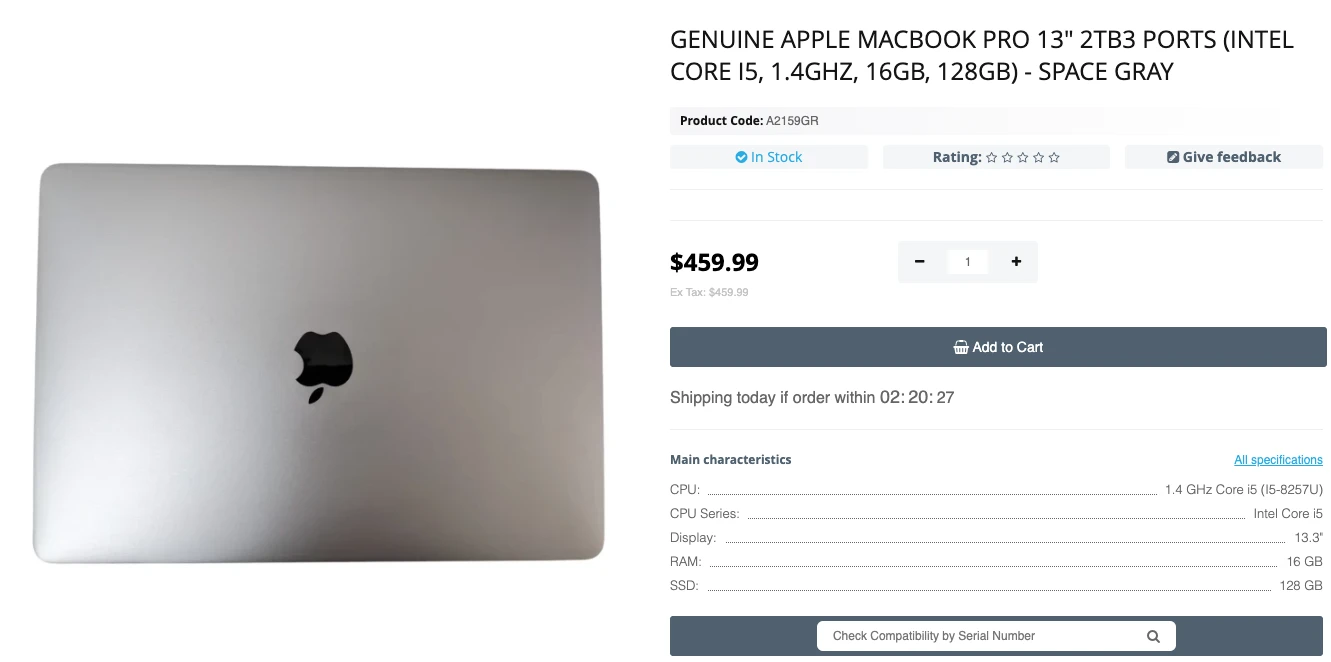
Genuine Apple Macbook Pro 13" 2tb3 Ports (Intel Core I5, 1.4ghz, 16gb, 128gb) - Space Gray


|
ABOUT THE AUTHOR
Volodymyr Chubei Volodymyr was born in Ukraine and has found his passion for electronics from his childhood. At the age of 13, he was capable of soldering some basic elements of a logic board and today he is one of the co-founders of TechToro.io |


Soon, from June 9 till June 13, all Apple fans will be able to witness the ...
Read More

Over time, some of your MacBook features may not be enough for comfortable ...
Read More

MacBook users sometimes face the situation when the display flickers. In th...
Read More

In macOS, trackpads and mice have a scrolling direction similar to the way ...
Read More


