| we ship to: |                                      |
| we ship to: | |

Every MacBook user has at least once encountered a situation when the screen is dirty screen, it may have fingerprints, dust, grease spots - all this spoils visual perception and can even affect your eyesight or lead to some problems with your laptop. In this article, we will discuss in detail how to safely and effectively clean the MacBook screen at home without damaging the surface and avoiding any impact on the device.
Before cleaning, it is important to properly prepare not only the device itself, but also the workplace. This will help to avoid accidental damage, short circuits and ensure the best cleaning efficiency.
What you need to do before you start clean Mac screen:
It is also advisable to turn off the keyboard backlight and screen brightness before cleaning - this will help you see stains and smudges better.
Also: How to take care of MacBook: 10 Tips to Make it Last as Long as Possible
To clean the Mac screen safely and effectively, it is important to use only those materials that will not damage the coating or leave streaks. Never use household cleaners or abrasives.
Recommended materials:
Don't forget: any liquids should only be applied to the cloth, not the screen - this is a basic rule of safe cleaning.
Your MacBook screen is one of the most vulnerable parts of the device. Dust, fingerprints, and small splashes can worsen visibility over time and affect your experience. You need to clean the screen correctly to avoid damaging the coating. Here are some proven and safe ways how you can clean your MacBook screen at home.
For regular cleaning of dust and light marks on the Mac, a simple method using microfiber and distilled water will do. Normal tap water is not suitable as it can leave streaks and mineral stains. No aggressive chemicals - just a delicate approach.
Procedure:
If your screen hasn't been cleaned in a while, and dust and greasy marks have accumulated on it, this method works best. It combines dry cleaning and gentle wet wiping to avoid streaks.
Use two clean microfiber cloths and distilled water or a specialized screen cleaner.
Procedure:
Also: Emergency Response: What to Do If Spilled Water on MacBook
If you want to achieve a perfect result and are confident in the composition of the cleaning product, you can use branded sprays or wet wipes for screens. They are effective against grease stains and do not leave streaks.
You can use, for example, WHOOSH! Screen Cleaner, Ecomoist, branded Apple wipes. Spray only on the cloth, not on the screen.
Procedure:
For difficult stains - e.g. dried splashes or grease marks - a solution based on isopropyl alcohol will help. Suitable for moderate and infrequent use only, so as not to damage the finish.
Mix distilled water and isopropyl alcohol in equal proportions to make a mild but effective screen cleaner. Apply it only to a microfiber cloth.
Procedure:
Your MacBook screen has a special oleophobic coating that can be easily damaged by harsh substances or inappropriate materials. Many people try to quickly clean the MacBook screen using improvised tools, which can result in scratches, streaks, and even loss of brightness.
The list of things which are strongly not recommended for use.
If you have any doubts about whether a particular product can be used, it's best not to use it. Apple recommends only soft cloths and special products without aggressive components in its official documentation.
Even when using safe products, it's important to follow a few simple rules to keep your Mac screen cleaner and looking like new for longer. These tips will help minimize contamination and extend the life of your device.
Helpful Guidelines:
Additionally, if you work in a dusty environment or near a kitchen (which is often the case at home), it's worth wiping the screen more often - at least with a dry microfiber. This will prolong the life of the coating and reduce the risk of stains that are hard to remove.
At Techtoro.io, you can choose a new screen for your Mac. Different configurations are available to suit your needs — from Retina displays to high-refresh-rate panels. Whether you're replacing a damaged screen or upgrading for better visuals, we offer quality options compatible with various Mac models. Fast shipping and expert support included.

Genuine LCD Screen (Display) Assembly, Silver (661-05096) A1708 A1706
If your current MacBook is outdated or underperforming, you don't have to spend a large sum on a new one. At Techtoro.io, you can choose a refurbished MacBook in great condition, with a warranty, and at an affordable price. Different models and colors are available, so you can easily find the right one for your needs. All devices are professionally inspected and cleaned, and are fully operational.
You can also send your old Mac in for repair or exchange it for another directly through the platform. It's convenient, cost-effective and environmentally friendly - your tech gets a second life. Techtoro.io offers a smart approach to upgrading your tech without overpaying or taking risks. Choose your MacBook today.


|
ABOUT THE AUTHOR
Volodymyr Chubei Volodymyr was born in Ukraine and has found his passion for electronics from his childhood. At the age of 13, he was capable of soldering some basic elements of a logic board and today he is one of the co-founders of TechToro.io |

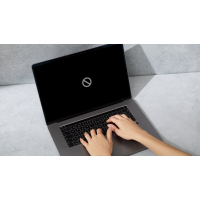
Mac startup failures are a common problem that can cause panic among many u...
Read More

One of the most common problems Mac users face is a flashing folder with a ...
Read More

Graphics card problems have become one of the most common and complex techn...
Read More

As of 2025, touchscreen laptops have a market share of approximately 8.25 p...
Read More


