| we ship to: |                                      |
| we ship to: | |
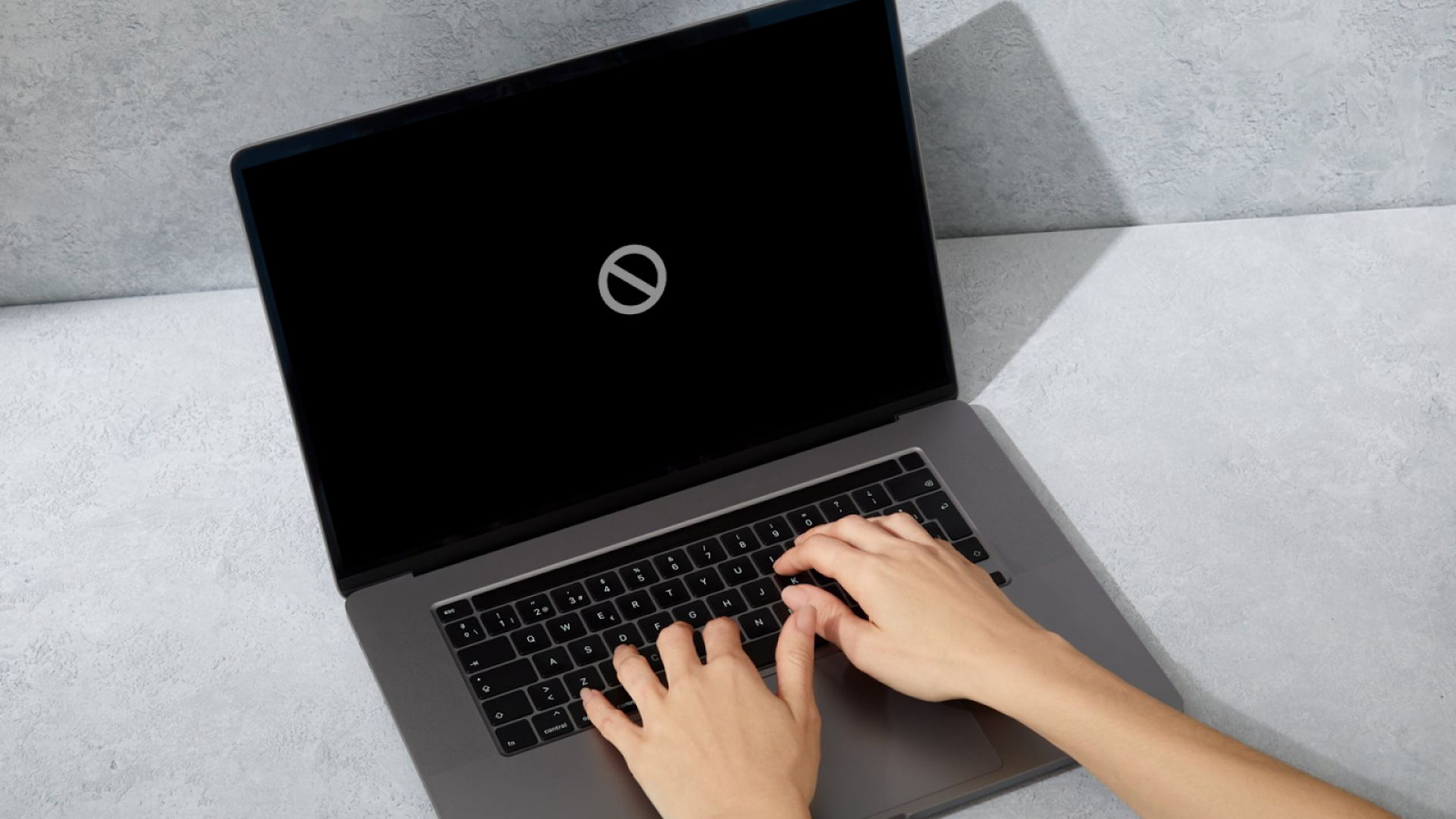
Mac startup failures are a common problem that can cause panic among many users. The sudden inability to turn on your computer can happen at the most inconvenient time, especially when important documents or projects are stored on the device. In this article, we’ll examine the main reasons why a MacBook or iMac might not boot up and offer solutions for various troubleshooting scenarios.
When a Mac is not booting up, it can be caused by numerous factors. The most common issues include:
To effectively troubleshoot the issue, first determine if your computer shows any signs of life — whether indicators light up, fan sounds are audible, or if the device responds to the power button. These initial signs will help narrow down potential issues and identify the appropriate troubleshooting method.
If your Mac is not booting, there are several methods that may help resolve the issue. Starting with the simplest solutions can often save time and prevent unnecessary troubleshooting steps.
First, ensure the issue isn’t related to power. A MacBook won’t boot up sometimes simply due to a lack of electricity or power delivery issues.
If the power supply checks out, perform a hard restart by holding the power button for at least 10 seconds until the Mac completely shuts down, then press it again to start up. This simple method forces the computer to restart all systems and can clear temporary glitches preventing normal operation.
Every so often, the cause of boot problems can be connected external devices. Conflicts with peripherals may prevent the system from starting normally, as your Mac might be attempting to boot from an external device or experiencing hardware conflicts.
Disconnect all external devices from your Mac, leaving only the power cable connected:
After disconnecting all accessories, try starting your Mac again. If it boots successfully, reconnect devices one by one, checking after each connection to identify which peripheral might be causing the issue. Some devices may require updated drivers or might not be fully compatible with your current macOS version.
Safe Mode is an effective diagnostic tool that helps determine whether the issue is related to software or hardware. In this mode, only essential system processes and drivers are loaded, and startup items are temporarily disabled.
For Macs with Apple Silicon processors:
For Macs with Intel processors:
If your MacBook won’t boot into safe mode, the issue may be more serious than a simple software conflict and could indicate more in-depth system issues. When Safe Mode works, but normal boot doesn’t, focus on identifying problematic login items, recently installed software, or system extensions that might be interfering with the startup process.
When a MacBook Pro won’t boot past the Apple logo and then shuts off, it can indicate several issues, from software conflicts to hardware issues. This behavior suggests that your Mac is attempting to start up but encountering a critical error that forces it to shut down.
NVRAM or PRAM stores system settings such as sound volume, screen resolution, and startup disk information. Resetting these parameters can resolve issues with hanging at the Apple logo.
For Macs with Intel processors:
For Macs with Apple Silicon:
After resetting NVRAM/PRAM, your Mac might take slightly longer than usual to start up. Some of your personalized settings may need to be reconfigured, including volume, display resolution, and startup disk selection. This process often resolves issues related to corrupted system settings that prevent proper boot sequence completion.
Recovery Mode provides access to macOS tools for diagnosing and resolving problems. One such tool is Disk Utility, which allows you to check and repair your disk:
Disk Utility can identify and fix many file system errors that might prevent proper booting. It verifies the disk structure and attempts to repair directory issues, permission issues, and other common disk errors that can accumulate over time.
If your MacBook Air won’t boot into recovery mode, you may need to try Internet Recovery by holding Command + Option + R during startup. This loads the recovery system directly from Apple’s servers rather than from your local storage, which is helpful when the recovery partition itself might be damaged.
Also:
The SMC is responsible for many low-level Mac functions, including power management, battery charging, thermal management, and keyboard backlighting. Resetting the SMC can resolve various hardware-related issues.
For desktop Macs:
For laptops with non-removable batteries:
For Apple Silicon Macs, no specific SMC reset is required as the system manages these functions differently. A normal restart or shutdown and power-on after waiting 30 seconds will reset any necessary systems.
When a MacBook won’t boot folder question mark appears during startup, it means the system cannot find the startup disk or that it lacks a functioning operating system. This icon is your Mac’s way of indicating it’s searching for a valid system to start, but cannot locate one.
When a flashing folder with a question mark appears during startup, it means the Mac can’t determine which disk to boot from. There are several main causes:
Understanding the specific cause helps determine the most effective solution to recover your system and get your Mac running again.
Selecting the correct startup disk can resolve the folder with the question mark problem:
If your Mac doesn’t display any drives in the Startup Manager, this suggests a more serious problem with your storage device or its connection to the system.
If the disk is visible but doesn’t boot:
If previous methods haven’t helped, you can try reinstalling the operating system without deleting user data:
This option replaces the system files while preserving your personal data and applications. The process may take some time depending on your internet connection speed, as the installer will download the necessary system files from Apple’s servers.
The inability to boot a Mac creates a serious threat to data security. If you need to learn how to recover files from a MacBook Pro that won’t boot, there are several methods available that can help save your important documents, photos, and other data.
Target Disk Mode allows you to use one Mac’s hard drive as an external storage device for another computer:
For Apple Silicon Macs, use the startup options menu to select “Share Disk” instead of using the T key method. This approach works best when the issue is with the operating system rather than the physical disk itself.
If Target Disk Mode cannot be used, specialized data recovery software can help retrieve your files:
Professional recovery tools can often retrieve data even from formatted or corrupted drives. The sooner you begin the recovery process, the higher the chances of successfully recovering your data, as new data written to the disk could overwrite recoverable files.


A folder with a question mark at startup means that your Mac cannot find a startup disk with a functioning operating system. This can be caused by disk damage, system file failure, or boot setting issues.

|
ABOUT THE AUTHOR
Volodymyr Chubei Volodymyr was born in Ukraine and has found his passion for electronics from his childhood. At the age of 13, he was capable of soldering some basic elements of a logic board and today he is one of the co-founders of TechToro.io |


One of the most common problems Mac users face is a flashing folder with a ...
Read More

Graphics card problems have become one of the most common and complex techn...
Read More

As of 2025, touchscreen laptops have a market share of approximately 8.25 p...
Read More

If your Mac is running slow, getting hot, or draining quickly, it's likely ...
Read More


